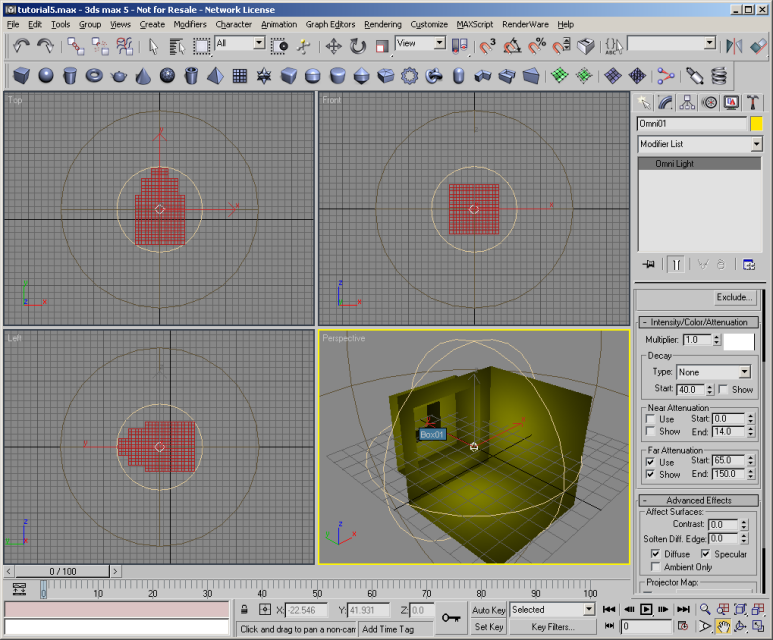
The RenderWare Graphics Export Wizard creates an asset in the Asset Manager tab. This asset is used for export. The project name will be used to name the file.
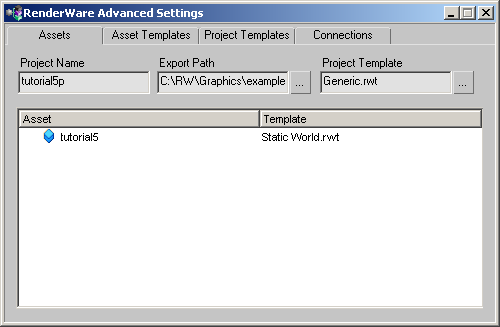
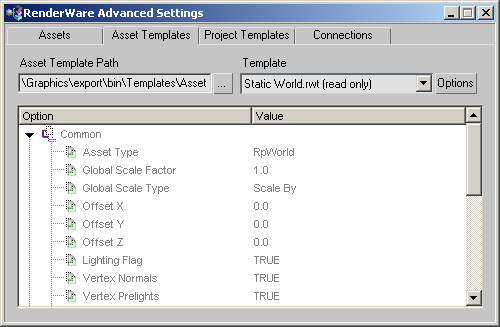
A Static World template exports static geometry. To modify the options used to create this static world:
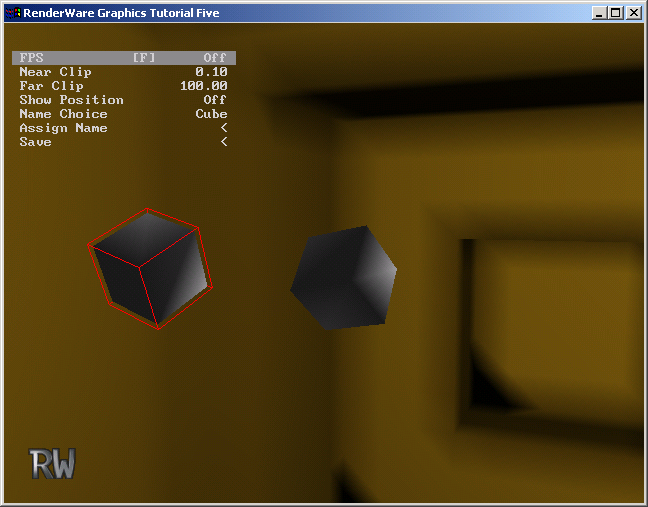
Initialize3D() function in main.c to load this new .rws file. You should find that the world is now loaded and is prelit. However, the back wall is still being illuminated by the RenderWare Graphics directional light and appears fully bright. On this wall no prelighting is visible. You should now be in a position to understand that the default camera position is looking towards this fully bright wall.
Our next step is to modify the run-time directional light so that it does not illuminate the world. RenderWare Graphics lights can be configured to illuminate atomics, or worlds, or both. By default they illuminate both, which is not what we want to happen in our application.
CreateLights() function, modify the ambient and directional lights. Before the lights are added to the world, make calls to RpLightSetFlags() and set the lights to illuminate only atomics (rpLIGHTLIGHTATOMICS).
    static void
    CreateLights(void)
    {
        Ambient = RpLightCreate(rpLIGHTAMBIENT);
        if (Ambient)
        {
            RpLightSetFlags(Ambient, rpLIGHTLIGHTATOMICS);
            RpWorldAddLight(World, Ambient);
        }
Direct = RpLightCreate(rpLIGHTDIRECTIONAL);
        if (Direct)
        {
            RwFrame *f = RwFrameCreate();
            RpLightSetFrame(Direct, f);
            RpLightSetFlags(Direct, rpLIGHTLIGHTATOMICS);
            RpWorldAddLight(World, Direct);
        }
}
This time the RenderWare Graphics light does not illuminate the back wall, and we can see the prelighting. The cubes that you have added show that the RenderWare Graphics directional light continues to illuminate atomics, and also indicate the direction of the light.